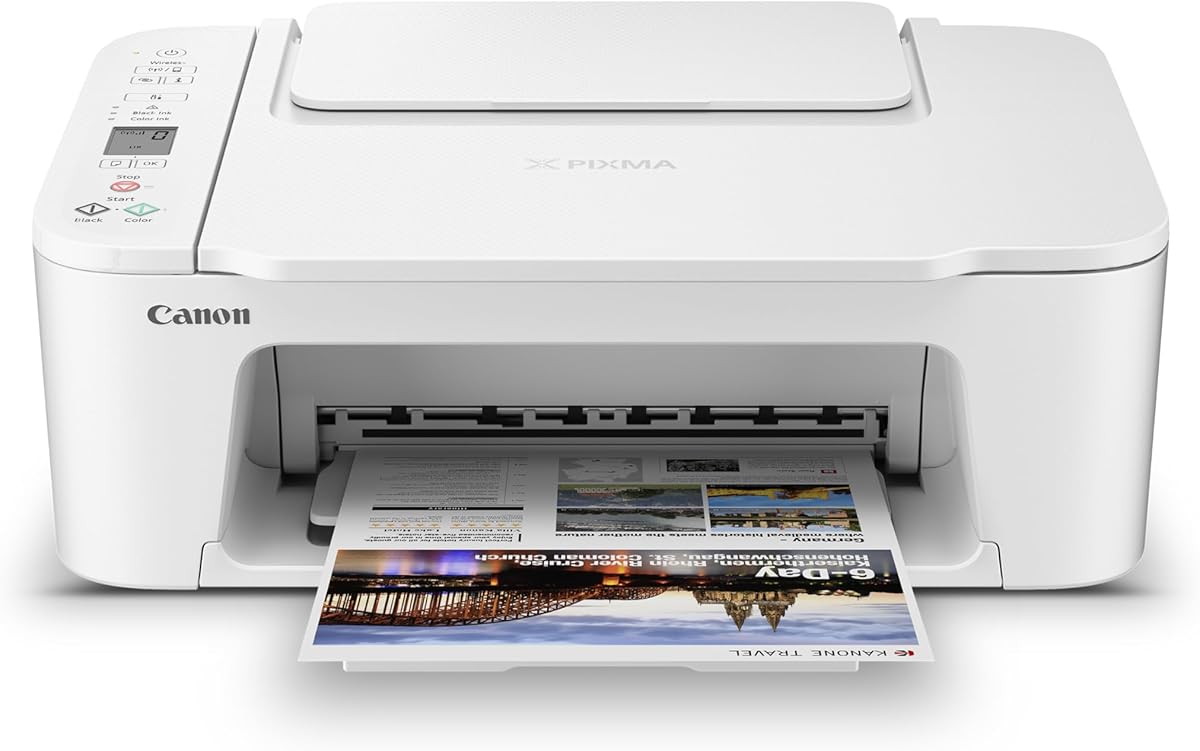
Canon PIXMA TS3720
4.0Editor score
Simple 1.5 inch LCD screen
Easy wireless setup without computer
Two ink cartridges for color
Finding a printer that is simple to operate can be challenging for older adults who value clarity and reliability. This guide highlights models designed with straightforward controls and minimal setup steps.
We evaluated ten current models based on interface clarity, wireless connectivity stability, and overall usability for everyday tasks. Our analysis focuses on features that reduce frustration during daily printing needs.
Each pick highlights key strengths like touch screen size, mobile app support, and ink management options. Remember that pricing and availability may change frequently across online retailers.
4.0Editor score

4.2Editor score

4.3Editor score
As an Amazon Associate we earn from qualifying purchases.
This side-by-side comparison outlines the core capabilities of each selected model to help you decide which fits your home workspace needs best.




The HP DeskJet 2955 offers essential printing functions with a focus on simplified layout control. Its rating reflects strong usability features like AI-powered web page trimming which reduces manual edits.
We may earn a commission when you buy through this link, at no additional cost to you.
This model shines with its Icon LCD interface that guides users through basic documents without confusion. The AI feature removes extra menu bars from printed web pages ensuring clean readable text.
While print speeds are modest the wireless connection stability makes it dependable for occasional use. The automatic connection resolution helps avoid frustrating network errors that might confuse less tech-savvy users.
Buy this if you need a small printer that handles basic docs with minimal fuss. The AI formatting tools provide a unique convenience for printing emails or instructions directly from a browser.
HP AI automatically detects and removes unwanted page elements ensuring your prints look exactly as intended without manual adjustments.
The reliable dual-band system automatically detects and fixes connection issues to keep printing smooth across your home network.
We may earn a commission when you buy through this link, at no additional cost to you.
The Canon PIXMA TS6520 stands out with its dedicated OLED display that provides clear feedback on ink levels and errors. Its rating highlights consistent performance and reliable wireless setup for home users.
We may earn a commission when you buy through this link, at no additional cost to you.
Automatic duplex printing saves paper and effort by handling two-sided documents without manual flipping. The hybrid ink system ensures sharp text for letters and vivid colors for family photos alike.
While the OLED screen is not color it offers high contrast for easy reading in various lighting conditions. The compact footprint fits well on smaller desks without sacrificing scanning or copying functionality.
Choose this model for its balance of modern features and straightforward interface. The OLED display gives seniors a clear view of printer status making troubleshooting much less daunting than generic LCD screens.
The monochrome OLED screen offers high contrast to easily monitor ink levels and printer status at a glance.
Automatic duplex printing reduces paper usage and speeds up workflow by handling double-sided pages automatically.
We may earn a commission when you buy through this link, at no additional cost to you.
The Canon PIXMA TS3720 is designed for essential printing tasks with a focus on cost effectiveness and simplicity. Its strong rating indicates reliable operation and easy connection without technical hurdles.
We may earn a commission when you buy through this link, at no additional cost to you.
Setup completes in minutes using the streamlined process that often requires no computer connection. The 1.5 inch LCD screen provides just enough interface for basic controls without overwhelming menu layers.
While it lacks automatic two-sided printing the low upfront cost makes it ideal for occasional document needs. The mobile app support ensures you can print directly from phones which is convenient for seniors.
This printer suits buyers who prioritize affordability and ease of use over advanced automation. The simple design means fewer moving parts to manage making maintenance less stressful over time.
Easy Wi-Fi setup finishes in minutes allowing users to connect directly from mobile devices without needing a PC.
Full color prints use only two easy-to-replace cartridges that minimize mess during routine maintenance.
We may earn a commission when you buy through this link, at no additional cost to you.
The Canon PIXMA TS4320 brings versatile functionality to home users who need reliable scanning and copying alongside printing. Its rating supports consistent performance for documents and photos alike.
We may earn a commission when you buy through this link, at no additional cost to you.
Automatic duplex printing saves paper while the hybrid ink system maintains vivid colors for personal photos. The device connects seamlessly via dual-band Wi-Fi ensuring stable connections throughout the house.
Design considerations include a compact footprint that fits easily into tight spaces without sacrificing key features. Energy efficiency certifications help reduce environmental impact which might matter to eco-aware buyers.
Select this printer for balanced daily performance that does not overwhelm users with complex options. The straightforward mobile apps and dual-band support make it accessible for seniors managing home office tasks.
The two-cartridge hybrid ink system delivers sharp text and vivid colors for both documents and photos effectively.
Designed to fit seamlessly into any workspace this printer complements your environment without sacrificing functionality.
We may earn a commission when you buy through this link, at no additional cost to you.
The Brother Work Smart 1360 integrates cloud services directly into its interface allowing easy access to files from apps. Its rating reflects solid speed and connectivity options for varied home tasks.
We may earn a commission when you buy through this link, at no additional cost to you.
The 1.8 inch color display enhances navigation compared to smaller monochrome screens by showing clearer icons. This visual feedback helps users locate functions quickly without needing a manual during setup.
While the ADF holds only twenty sheets it suffices for short document batches. The page gauge feature helps track ink levels efficiently reducing surprises when supplies run low unexpectedly.
This model works well for seniors who rely on cloud storage for documents like photos or recipes. The mobile connect app simplifies onscreen navigation for common tasks without deep technical knowledge.
The 1.8 inch color display offers easy-to-use menu navigation for printing copying scanning and device management.
Connect to popular cloud apps directly from the printer to print or scan files from services like Google Drive.
We may earn a commission when you buy through this link, at no additional cost to you.
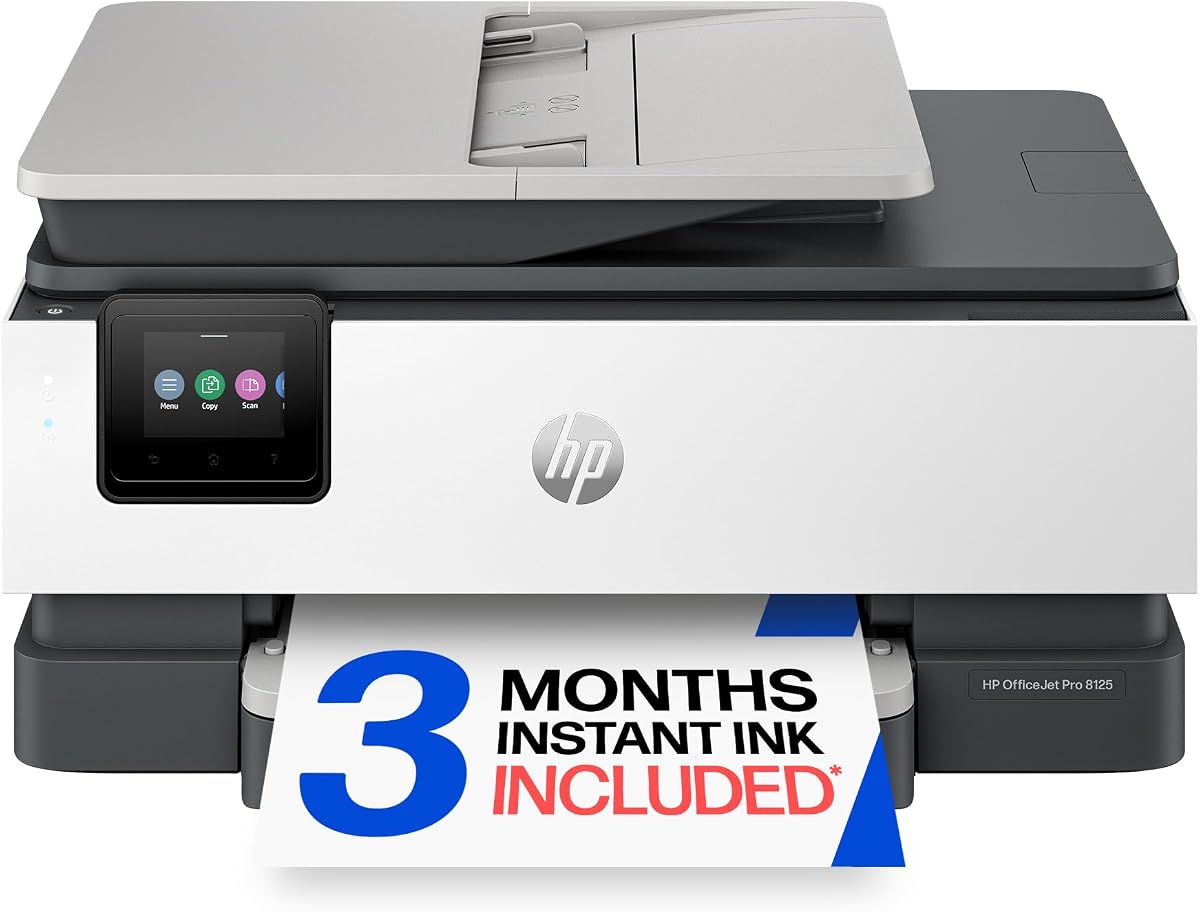
The HP OfficeJet Pro 8125 delivers professional-quality color suitable for home offices needing reports or business documents. Its rating highlights speed and security features that protect against common cyber threats.
We may earn a commission when you buy through this link, at no additional cost to you.
A 2.7 inch touchscreen offers ample space for navigation making it easier for those who need larger touch targets. AI tools optimize web page formatting ensuring emails print cleanly without unnecessary menu clutter.
While the device is larger than basic models the included ADF streamlines multi-page scanning tasks significantly. The HP Wolf security helps keep network connections safe which is vital for home office setups.
Invest in this printer when document quality and network safety take priority over compact size. The large touchscreen and AI tools provide convenience that reduces errors and improves overall productivity for seniors.
HP Wolf Essential Security bolsters network protection to help keep your home setup safe from common cyber threats.
HP AI optimizes print formatting to remove unwanted content from web pages and emails automatically.
We may earn a commission when you buy through this link, at no additional cost to you.
The HP Envy 6155 excels at reproducing photos and colorful documents for home use. Its rating indicates strong performance and reliable connections for everyday tasks like schoolwork or family albums.
We may earn a commission when you buy through this link, at no additional cost to you.
True-to-screen technology ensures printed photos match their digital look with vivid P3 color range. The 2.4 inch touchscreen provides intuitive access to print settings and scanning options without confusion.
Dual-band Wi-Fi connectivity helps maintain a stable link to your home network reducing dropped jobs. AI tools further refine document layout to prevent awkward text flow on printed pages.
Choose this printer when photo quality and interface size matter most for your daily printing. The combination of vivid colors and smart AI features offers a satisfying experience for casual home users.
HP's P3 technology ensures documents and photos print as vibrant as they appear on your digital screen.
The easy-to-use 2.4 inch touchscreen helps you smoothly navigate all printer functions without complex steps.
We may earn a commission when you buy through this link, at no additional cost to you.
The Canon PIXMA TR4720 combines standard printing with built-in fax support for users who still rely on legacy systems. Its rating highlights versatility including auto duplex printing and mobile connectivity.
We may earn a commission when you buy through this link, at no additional cost to you.
An auto document feeder handles multi-page scans or copies efficiently without manual sheet feeding. Alexa integration allows voice commands to alert you when ink is low or place reorders automatically.
Speeds are slower compared to newer models but reliability remains strong for standard document sizes. The 100-sheet capacity supports typical home volumes without constant paper refilling.
Select this printer if fax capabilities are essential for your personal or small business needs. The combination of auto feeders and voice-assisted ink tracking offers practical convenience for daily tasks.
Connect your printer to Alexa to receive notifications when you're running low or place smart reorders automatically.
This model includes fax functionality alongside print scan and copy features for comprehensive document handling.
We may earn a commission when you buy through this link, at no additional cost to you.
The Epson EcoTank ET-2800 replaces traditional cartridges with refillable ink bottles to lower long-term costs significantly. Its rating reflects consistent output and reduced waste which aligns with eco-friendly values.
We may earn a commission when you buy through this link, at no additional cost to you.
Each ink set lasts up to two years reducing frequent trips to stores for replacements. The Micro Piezo heat-free technology ensures quality prints without risking damage from heat during operation.
While the initial purchase price is higher the savings on ink quickly offset that cost for frequent users. The zero-cartridge waste design helps reduce environmental impact which may appeal to conscientious buyers.
Invest in this printer if you want to minimize maintenance visits and ongoing supply expenses. The ability to print thousands of pages before refill offers peace of mind for seniors who dislike constant upkeep.
No more dealing with tiny ink cartridges as each ink bottle set is equivalent to about ninety individual cartridges.
Replacement ink bottles don't have to be changed nearly as often as traditional cartridges for less frequent maintenance.
We may earn a commission when you buy through this link, at no additional cost to you.
The Canon PIXMA TR7120 earns a strong rating for its intuitive control panel and efficient document handling features. It handles multi-page tasks easily thanks to its auto document feeder capability.
We may earn a commission when you buy through this link, at no additional cost to you.
The OLED display allows you to monitor ink levels and status clearly while adjusting settings at a glance. Compact design ensures it fits in smaller spaces without losing essential scanning and copying functions.
Wi-Fi connections remain stable thanks to dual-band support which minimizes dropouts during important document jobs. The hybrid ink system maintains sharp text and vivid colors for both home and office documents.
Choose this printer when you need reliable performance for multi-page documents without cluttering your desk. The combination of OLED clarity and auto feeding offers convenience that suits seniors managing regular printing tasks.
Tackle multi-page documents with ease using the Auto Document Feeder for quick scanning and copying.
Easily monitor ink levels and adjust settings at a glance using the clear OLED display.
We may earn a commission when you buy through this link, at no additional cost to you.
Selecting the right printer involves evaluating interface design connectivity options and ongoing maintenance needs to ensure long-term satisfaction.
Look for screens with high contrast and large text like OLED or touchscreens which make menus easier to read. Clear icons and logical layouts reduce the need to consult manuals during routine tasks.
Prioritize models with simple displays that show ink status and errors clearly without confusing menus.
Choose printers that offer setup without a computer via direct wireless connection or mobile app guidance. Avoid devices requiring drivers or cables that complicate initial installation for users with limited tech experience.
A streamlined out-of-box process ensures you can print within minutes rather than hours of troubleshooting.
Dual-band Wi-Fi models detect and resolve connection issues automatically reducing dropped jobs and frustration during printing. Stable connections mean you can print from multiple devices like phones or tablets seamlessly.
Ensure the printer supports your home network frequency to avoid connectivity interruptions.
An intuitive mobile app lets you scan and print from your phone without needing to connect a computer. Look for apps that offer simple menus and quick access to common tasks like faxing or copying.
Strong mobile support adds flexibility especially when you need to print documents directly from cloud services.
Consider systems that allow easy cartridge replacement or refillable bottles to avoid messy maintenance tasks. Models that notify you early about low ink prevent interruptions during critical printing moments.
Simpler ink systems reduce the frequency of replacements which helps maintain consistent print quality.
Compact designs fit better in smaller home offices without crowding your workspace. Ensure the printer is lightweight enough to move easily if you need to access different areas of your home.
A smaller footprint also means less strain when loading paper or retrieving printed pages.
Features like automatic two-sided printing and auto document feeders save physical effort when handling multi-page documents. These functions minimize manual intervention and reduce the chance of errors during scanning.
Prioritize automation tools that simplify common tasks to reduce overall workload during printing.
Choose brands with accessible phone or live chat support to help resolve technical issues quickly. Clear warranty terms and local service options provide peace of mind in case of hardware malfunctions.
Reliable support channels ensure you are never stuck alone when the printer needs assistance.
Start by placing the printer on a stable flat surface and connecting it to power and Wi-Fi using the setup wizard. Follow on-screen prompts or use the mobile app to link the device to your home network.
Keep the paper tray filled with standard paper and close the lid properly to ensure smooth feeding. Use recommended paper types to avoid jams and maintain clear print quality over time.
Run a test print monthly to keep ink flowing and check for streaks on output. If prints appear faded replace cartridges or clean print heads using the menu maintenance tools.
A good printer features a clear display large buttons and simple menus for navigation. It should connect wirelessly without needing complex driver installs or technical knowledge to operate effectively.
Yes most modern printers support mobile printing apps that allow you to send documents directly from a phone. Look for models with AirPrint or manufacturer apps for seamless smartphone integration.
Many printers now offer computer-free setup using direct Wi-Fi connections and mobile apps. This simplifies installation significantly and lets you start printing without installing software on a PC.
Ink replacement depends on usage frequency but models with large cartridges last longer. Consider tank systems that reduce how often you change supplies if you print regularly.
Most models support cloud apps like Google Drive and Dropbox which can receive documents from email. Some also offer direct email printing services for seamless workflow without downloading files first.
Auto duplex printing automatically prints on both sides of the paper to save time and reduce waste. This feature eliminates the need to manually flip pages during larger print jobs.
This roundup highlights ten printers that balance simplicity with functionality for home users needing reliable document handling. Each option was selected for its clear interface and dependable wireless setup.
Prioritize models with large displays automatic features and mobile support to make daily printing stress-free and efficient. These elements reduce friction and ensure smooth operation for all your home needs.
Check current availability and pricing before purchasing to ensure you secure the best deal for your space. Technology evolves quickly so verify that features match your specific home office requirements today.