
Debian Linux 13.7 Bootable USB
5.0Editor score
Legendary stability and trust
No tracking or bloatware
Optimized for modern and older hardware
This guide compares ten top-rated bootable Linux USB drives for 2026, evaluating distro variety, compatibility, ease of use, and performance for all users.
Choosing the right bootable Linux USB drive can transform how you interact with your hardware. Whether you need to test a new operating system or revive an older machine, having a reliable portable solution is essential for modern computing needs today.
We analyzed ten carefully selected products based on user feedback, distro variety, and hardware compatibility. Our comparison focuses on ease of setup, support for UEFI and legacy BIOS, and the quality of the included software environments for daily tasks.
Each pick below highlights specific strengths like pre-installed tools or multiboot capabilities. Please note that prices and stock availability change frequently, so verify current details on the product pages before making your final purchasing decision online.
5.0Editor score

4.1Editor score

4.6Editor score
The following table provides a side-by-side overview of all ten reviewed drives. It highlights key specifications such as storage capacity, included distributions, and compatibility features to help you quickly identify the best match for your specific computing requirements and hardware setup.



This 64GB drive offers an impressive collection of sixteen different Linux distributions plus Windows 11. It stands out for users who want to explore multiple operating systems without downloading files individually.
We may earn a commission when you buy through this link, at no additional cost to you.
Each ISO has been tested to ensure functionality. The drive supports both UEFI and Legacy BIOS, making it versatile for older and newer computers alike. Video boot instructions are included to help users navigate setup.
The main trade-off is the size requirement, which means it takes up more storage space than smaller drives. However, this allows for a richer selection of tools and operating systems right out of the box.
Buyers looking for a comprehensive toolkit for IT professionals or enthusiasts should find this drive invaluable. It simplifies the process of testing different environments for specific tasks or hardware compatibility.
With options like Kali for security and Mint for daily use, users get immediate access to specialized tools without extra downloads.
Included images show boot menu hotkeys and video guides make starting the live environment straightforward for first-time users.
We may earn a commission when you buy through this link, at no additional cost to you.
Designed with beginners in mind, this drive features nine Linux distributions known for their user-friendly interfaces. It aims to make the transition from Windows smooth and intuitive.
We may earn a commission when you buy through this link, at no additional cost to you.
Most of the included distros come with pre-bundled software like office suites and web browsers. This reduces the need for users to install basic tools immediately after booting into a live session.
While it lacks advanced customization for power users, its simplicity is a strength. The printed user guide provides clear steps on how to boot and try without installing changes to the hard drive.
This option is perfect for students or home users wanting to try Linux without risk. It ensures a hassle-free experience with minimal technical barriers to entry for new adopters.
Instructions encourage pressing enter to handle black screens, simplifying the boot process for those unfamiliar with BIOS settings.
Inclusion of multimedia and messaging apps means users can test daily workflows immediately upon booting the drive.
We may earn a commission when you buy through this link, at no additional cost to you.
This drive offers a high-speed access to Linux Mint 22.3, widely recognized for its stability and ease of use. It is designed to work out of the box with essential apps included.
We may earn a commission when you buy through this link, at no additional cost to you.
Users get a complete productivity suite including LibreOffice for documents and spreadsheets. Graphic design tools like Gimp and Inkscape are also available for creative tasks right from the USB.
The premium aspect comes from the quality of the pre-installed environment which is optimized for a smooth desktop experience. It is ideal for testing compatibility or troubleshooting PCs without permanent changes.
For those prioritizing a reliable daily driver or a trustworthy recovery tool, this drive delivers. It provides a professional-grade experience that rivals commercial operating systems in functionality.
Steam and multimedia support ensures entertainment needs are met alongside productivity tools for a well-rounded OS experience.
Running directly from the USB allows for safe testing of hardware support before committing to a full installation on the device.
We may earn a commission when you buy through this link, at no additional cost to you.
Powered by Debian 13.7, this drive provides one of the most trusted Linux operating systems available. It focuses on security and privacy by excluding tracking or unnecessary bloatware.
We may earn a commission when you buy through this link, at no additional cost to you.
The system is optimized for performance on both modern and older hardware, ensuring speed even on less powerful devices. Users benefit from regular security updates and a customizable environment.
While the interface may not be as polished as Mint, the underlying stability is unmatched. This makes it a top choice for developers, IT professionals, and students who value reliability over aesthetics.
Buyers looking for a secure and open-source solution will appreciate the freedom this drive offers. It serves as a robust foundation for building custom environments or managing servers securely.
Privacy-focused design ensures user data is protected without hidden telemetry or external data collection during usage.
Lightweight nature allows it to run efficiently on older hardware, extending the life of aging machines without slowdowns.
We may earn a commission when you buy through this link, at no additional cost to you.
This 16GB drive is tailored for users who need a reliable way to install or repair Linux Mint on x86-64 PCs. It allows for quick evaluation of the environment before full installation.
We may earn a commission when you buy through this link, at no additional cost to you.
Users can start the live environment to test compatibility with their specific hardware. It supports installing on supported hardware without altering existing drives until the user is ready.
The compact size makes it easy to carry while still providing necessary tools for disk partitioning and system recovery. This is critical for those managing multiple computers or needing on-the-go support.
Ideal for repair technicians or individuals looking to fix a broken system, this drive offers a focused utility. It ensures you can restore functionality without needing complex setup procedures or external downloads.
A smaller 16GB capacity reduces bulk while maintaining enough space for the OS and essential repair utilities needed for standard systems.
Users are advised to disconnect nonessential drives to avoid accidental data loss during the partitioning and installation process.
We may earn a commission when you buy through this link, at no additional cost to you.
This drive stands out by including both 64-bit and 32-bit versions of Linux Mint, making it ideal for older hardware that cannot support modern 64-bit architectures. It covers multiple versions to ensure compatibility.
We may earn a commission when you buy through this link, at no additional cost to you.
Users can try different versions without installing anything, allowing them to find the best fit for their machine. The inclusion of older versions helps in keeping very old PCs functional with modern software.
The multiboot feature provides flexibility, letting users choose the specific version that works best. This is particularly useful for IT pros or home users managing a mix of old and new machines.
For those looking to keep older hardware alive, this drive is a practical solution. It bridges the gap between modern software and legacy systems by offering tailored versions of a stable distribution.
Support for 32-bit systems ensures even older PCs can run a modern OS environment without requiring hardware upgrades.
Users can switch between Mint versions to test performance and features across different updates and configurations easily.
We may earn a commission when you buy through this link, at no additional cost to you.
This drive combines seven different distributions with a focus on privacy and security tools like Kali and Tails. It is designed for users who need specialized utilities for testing or secure browsing.
We may earn a commission when you buy through this link, at no additional cost to you.
Clonezilla is included for disk imaging and backup, which is critical for system recovery and maintenance tasks. The drive supports UEFI and Legacy, ensuring broad hardware compatibility for these tools.
While it includes Windows XP, this is mostly for legacy compatibility, which may not suit all modern users. The primary value lies in the specialized nature of the included operating systems.
For security researchers or IT staff, this drive provides a portable toolkit. It allows quick access to privacy-focused systems and maintenance utilities without needing to download them individually.
Tails and Kali offer strong anonymity and security tools that are essential for users prioritizing data protection online.
Clonezilla inclusion allows users to create disk images and restore systems easily, which is vital for data preservation.
We may earn a commission when you buy through this link, at no additional cost to you.
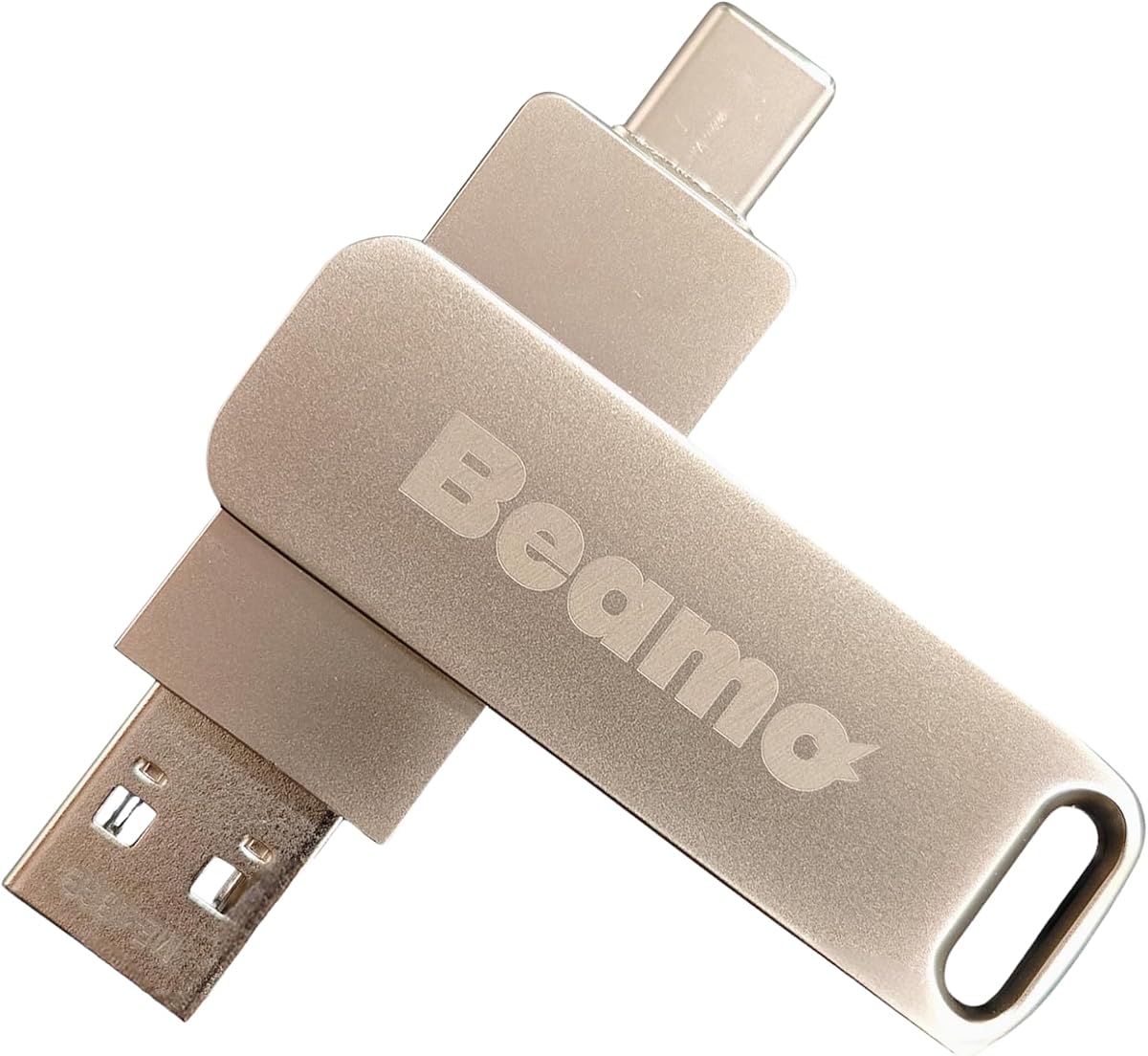
This drive offers both USB-A and USB-C connectors, making it highly versatile for modern and older computers. It focuses on providing a familiar yet better experience than Windows or macOS.
We may earn a commission when you buy through this link, at no additional cost to you.
The drive allows users to customize the USB by adding or replacing compatible ISOs easily. This flexibility is great for users who want to manage their own collection of bootable tools.
No internet connection is required to run or install, which is useful in offline environments. The hardware is built with high-quality flash chips for speed and longevity.
Ideal for users wanting a versatile and customizable solution, this drive balances hardware convenience with software freedom. It is a strong choice for daily use or emergency recovery scenarios.
Dual port design ensures compatibility with both newer laptops and older desktops without needing extra adapters.
Step-by-step instructions help users replace apps or add new ISOs, tailoring the drive to specific needs.
We may earn a commission when you buy through this link, at no additional cost to you.
This drive features Long Term Support versions of Ubuntu, ensuring stability and security updates for extended periods. It also includes Lubuntu for older PCs requiring a lightweight environment.
We may earn a commission when you buy through this link, at no additional cost to you.
Users get access to common software like web browsers and office suites right out of the box. The mix of 64-bit and 32-bit versions ensures compatibility with a wide range of hardware.
Ubuntu's popularity means there is extensive community support and documentation available. This makes it easier for users to find help or tutorials if they encounter issues during boot or installation.
For users wanting a stable platform with long-term reliability, this drive is a solid choice. It simplifies the process of getting a supported OS running without manual configuration or updates.
LTS versions are designed for reliability, ensuring that users do not face frequent changes or breaking updates.
Ubuntu's large user base provides a vast resource of guides and forums for troubleshooting and learning.
We may earn a commission when you buy through this link, at no additional cost to you.
This Ubuntu drive stands out for including a server installer alongside the desktop version. It is compatible with both Intel/AMD PCs and ARM-based computers, offering broad architecture support.
We may earn a commission when you buy through this link, at no additional cost to you.
The interface is clean and intuitive, similar to macOS or Windows but faster and more private. Users can enjoy a productivity suite without forced updates or data collection.
Ideal for professionals, it includes tools for networking and administration learning. The drive allows reviving slow PCs with lightweight environments while still offering modern desktop features for work.
Buyers looking for a comprehensive Ubuntu solution that covers both desktop and server needs should consider this option. It provides a robust foundation for diverse computing environments from learning to hosting.
Hosting and networking tools are available directly from the drive, making it a great learning tool for server admins.
No forced updates or data collection ensures a stable and private environment for work or personal use.
We may earn a commission when you buy through this link, at no additional cost to you.
Selecting the right drive requires considering your specific needs, hardware compatibility, and the distributions you plan to use.
Some drives offer a single distribution like Linux Mint, while others provide multiple options such as Kali, Debian, or Ubuntu. If you want to test different environments, a multiboot drive with several distros gives you more flexibility.
Look for pre-installed options that match your goals, such as privacy tools or server environments, to save time on manual downloads.
Ensure the drive supports both UEFI and Legacy BIOS to work on a wide range of computers. Older machines may require Legacy BIOS support, while modern laptops typically use UEFI.
Check if the drive is compatible with your system architecture, such as 64-bit or 32-bit, to avoid boot errors on older hardware.
Storage capacity affects how many distributions you can store on the drive. Larger capacities like 64GB allow for more ISOs, while smaller 16GB drives are sufficient for single distro use.
Choose a size that balances portability with the need to store multiple operating systems or large software packages.
User guides and boot instructions can significantly simplify the setup process. Drives that include printed guides or video tutorials are beneficial for beginners.
Look for options that allow testing without modifying your hard drive, ensuring a safe way to try before installing.
USB 3.0 or 3.2 drives provide faster data transfer rates, which can reduce boot times and improve overall performance.
High-quality flash chips ensure longevity and reliability, preventing data corruption during use.
Some distributions like Tails focus heavily on privacy, offering anonymity and secure communication tools.
Choose a drive with a privacy-focused OS if you plan to use it for sensitive tasks or on public networks.
Drives that come with pre-installed office suites or multimedia tools allow you to start working immediately after booting.
Check for included apps like LibreOffice or Steam if you need full desktop productivity or gaming capabilities.
Some drives allow you to replace or add ISOs, giving you the freedom to update the software over time.
If you prefer managing your own collection, choose a drive that supports easy customization and updates.
To use the drive, insert it into your computer's USB port and restart the device. Access the BIOS or boot menu by pressing a key like F12 or Delete during startup to select the USB as the boot device.
Once booted, you can run the live environment to test the operating system without installation. If you are satisfied, look for the installer icon on the desktop to install it permanently on your hard drive.
Keep the drive in a protective case when not in use to prevent physical damage. Avoid removing it while data is being written, and store it in a cool, dry place to ensure longevity.
Most drives support both UEFI and Legacy BIOS, making them compatible with a wide range of modern and older computers. However, Apple Silicon and ARM-based devices often have specific requirements that may not be met by standard x86-64 drives.
No, you can run the operating system directly from the USB drive using a live environment. This allows you to test and use the OS without making any changes to your computer's internal storage.
Secure Boot is a security feature that may prevent unsigned operating systems from loading. Disabling it allows the Linux distribution to boot, but you should re-enable it for Windows if you dual-boot.
Yes, having the drive ready saves time and internet bandwidth. The USB 3.0 or 3.2 speeds ensure fast boot times and efficient file access compared to slow internet downloads.
64-bit systems can access more memory and run modern applications better. 32-bit versions are included to support very old computers that do not support newer 64-bit architectures.
Some drives allow you to create persistent storage where files can be saved. Check the specific product details to see if persistence is supported for your chosen distribution.
If you prefer a user-friendly interface, choose Mint or Ubuntu. For security or privacy needs, consider Tails or Kali. For stability, Debian is a strong option.
Some multiboot drives include a Windows option or tools, but they are primarily designed for Linux. For Windows installation, using the official Microsoft media creation tool is generally recommended.
The best drive depends on whether you need variety, speed, or a specific operating system. Our top picks offer a range of options for beginners and professionals alike.
Consider your hardware compatibility and whether you need multiple distros or a specialized tool like Kali. The right choice will enhance your computing experience significantly.
Always check current prices and availability before buying. These drives provide a versatile and powerful way to manage your computing needs efficiently.